What Is an Online Ordering System?
An online ordering system is software that lets customers browse your menu, place orders, and pay directly through your restaurant’s website or app — without phone calls or third-party platforms like Uber Eats.
It handles the full flow: menu browsing → order → payment → kitchen → delivery.
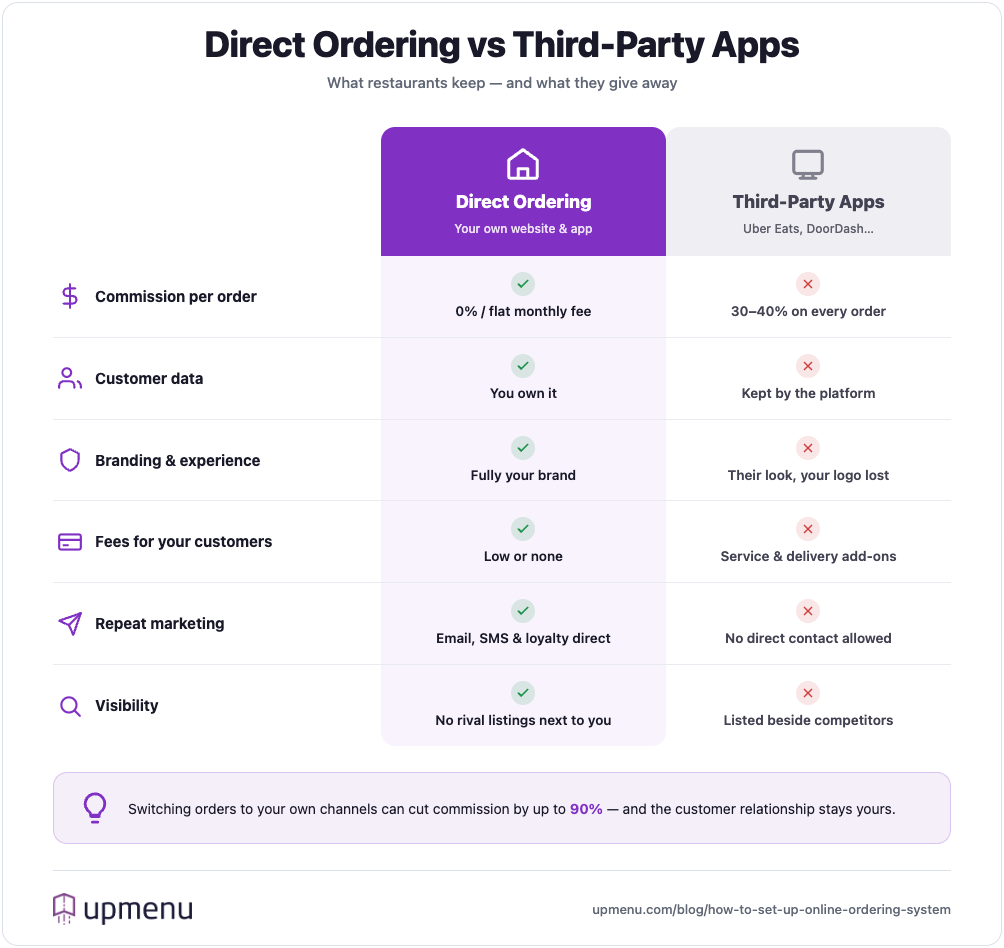
It’s not just about convenience. A good restaurant online ordering system can improve almost every part of your business.
Here’s what it helps you do:
- Keep all your profits: Skip the high commissions from third-party delivery services and make more money from every sale.
- Build direct customer relationships: Own the data, stay in control of the experience, and grow your customer base without middlemen.
- Increase order accuracy: No more misheard phone orders—customers select their menu items themselves and confirm everything before paying.
- Speed up the ordering process: Customers can order online in just a few clicks without waiting on hold or repeating orders.
- Customize your menu: Update prices, add seasonal specials, upsell extras, and highlight popular food items any time you want.
- Improve operational efficiency: Orders go straight to the kitchen or POS system, helping staff focus and reducing wait times.
- Boost brand visibility: With your own online ordering platform on your restaurant website, you control the design, messaging, and promotions.
Long story short: a restaurant online ordering system gives you more control, more revenue, and a better experience for your customers.
What You Need Before You Start
Before you set anything up, gather these basics — having them ready means you can launch in a single sitting:
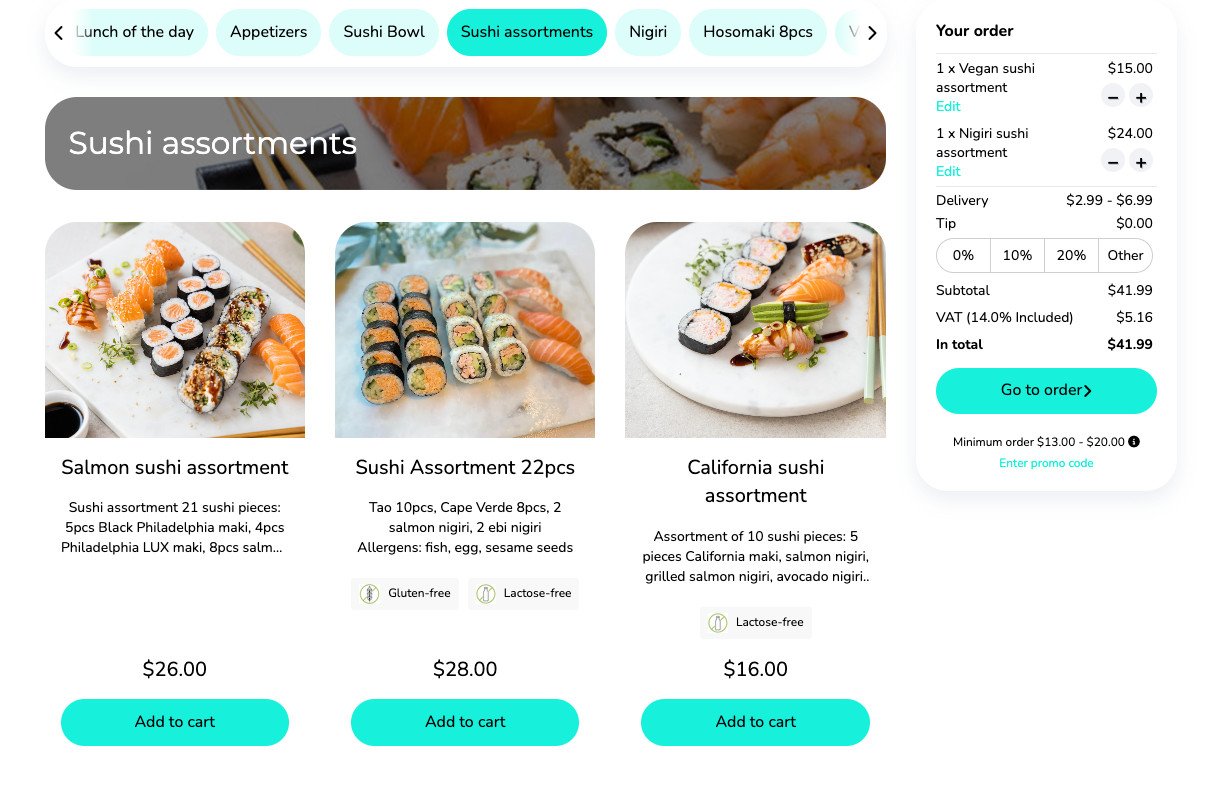
Here’s what to set up (with screenshots of how it looks in action):
Storefront (Online Menu)
Create a clear, user-friendly online menu with categories, prices, images, and options to customize dishes (like add-ons, sides, or portion sizes). Make it mobile-friendly and visually appealing.
Restaurants using online ordering system have reported up to a 37% increase in sales (UpMenu customer data) due to the ease of use, direct ordering, and reduced reliance on third-party platforms.
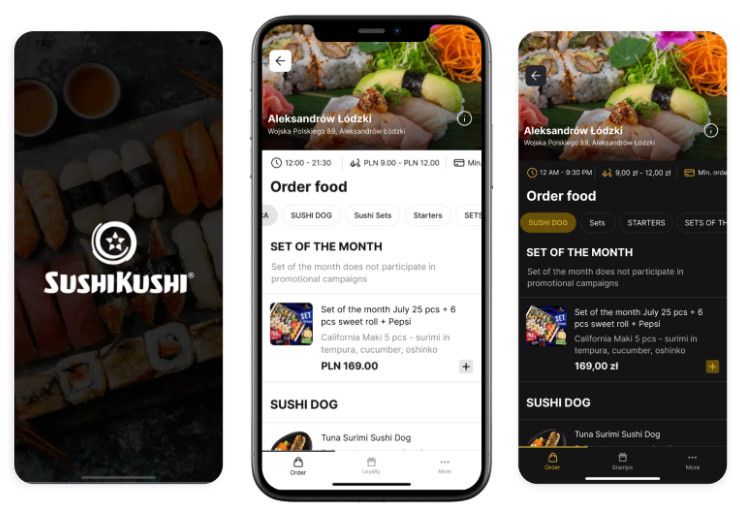
Mobile App
Let customers order on the go with a branded restaurant mobile app. They can browse the menu, track their orders, save favorites, and manage their profiles—all in one place.
UpMenu’s mobile app generates over 40% of the total revenue (Michelangelo 301 Case Study) for restaurants using the platform, highlighting the growing trend of mobile ordering.
Tableside & QR Code Ordering
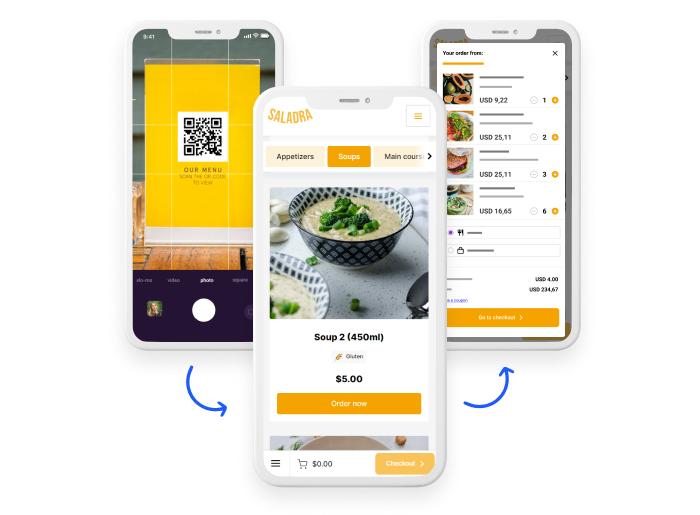
Let dine-in guests scan a QR code menu at the table to access the restaurant menu through your own website and place orders directly from their phones. This reduces wait times and improves table turnover.
Delivery Management
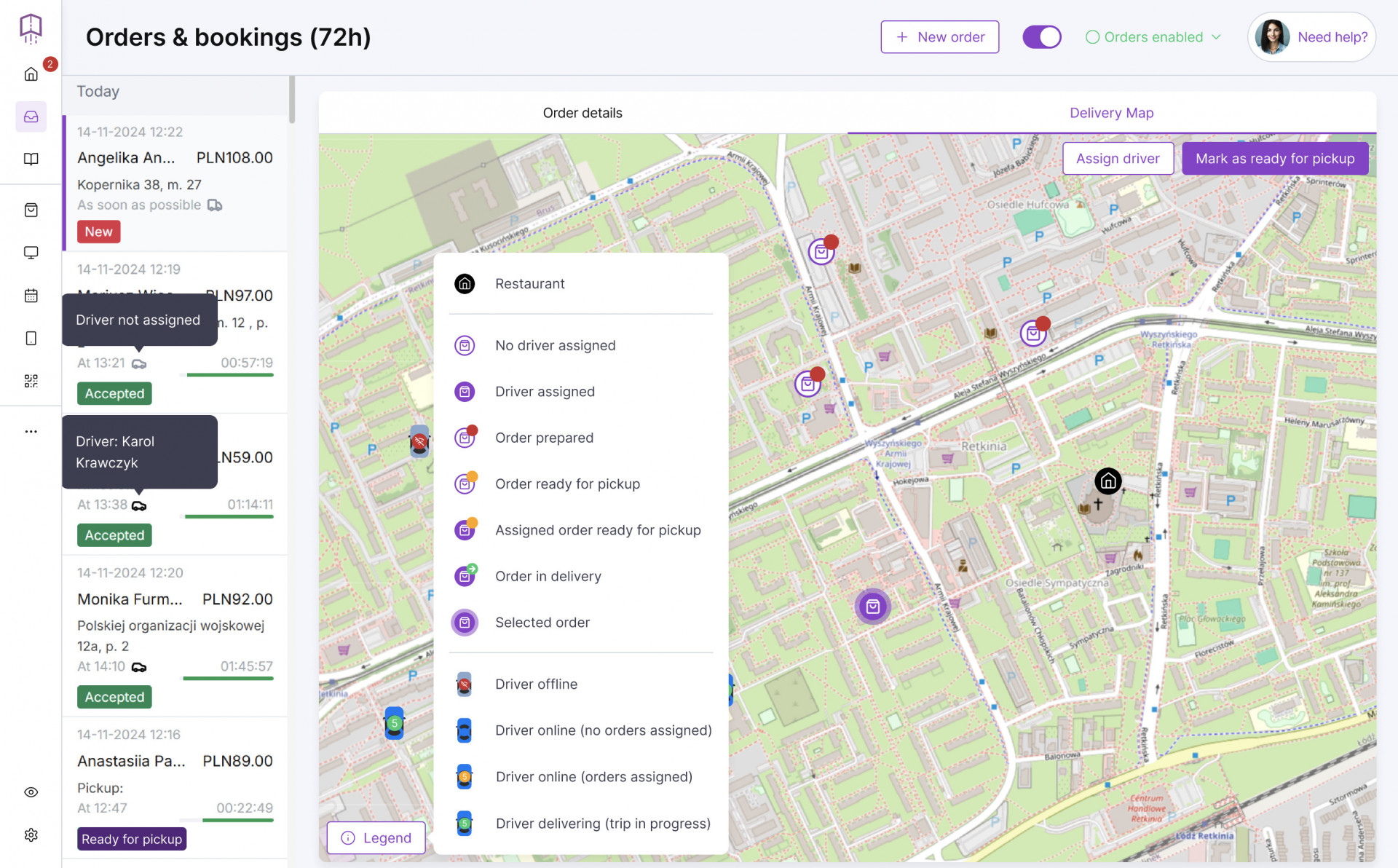
Use restaurant delivery software to assign and track orders, manage drivers, and optimize delivery routes. Especially helpful if you handle in-house delivery.
According to our data, restaurants offering online ordering can see an increase in sales, with restaurants that offer both delivery and takeout services generating 53% more revenue on average compared to those that do not.
Delivery Dispatch (Third-Party Integration)
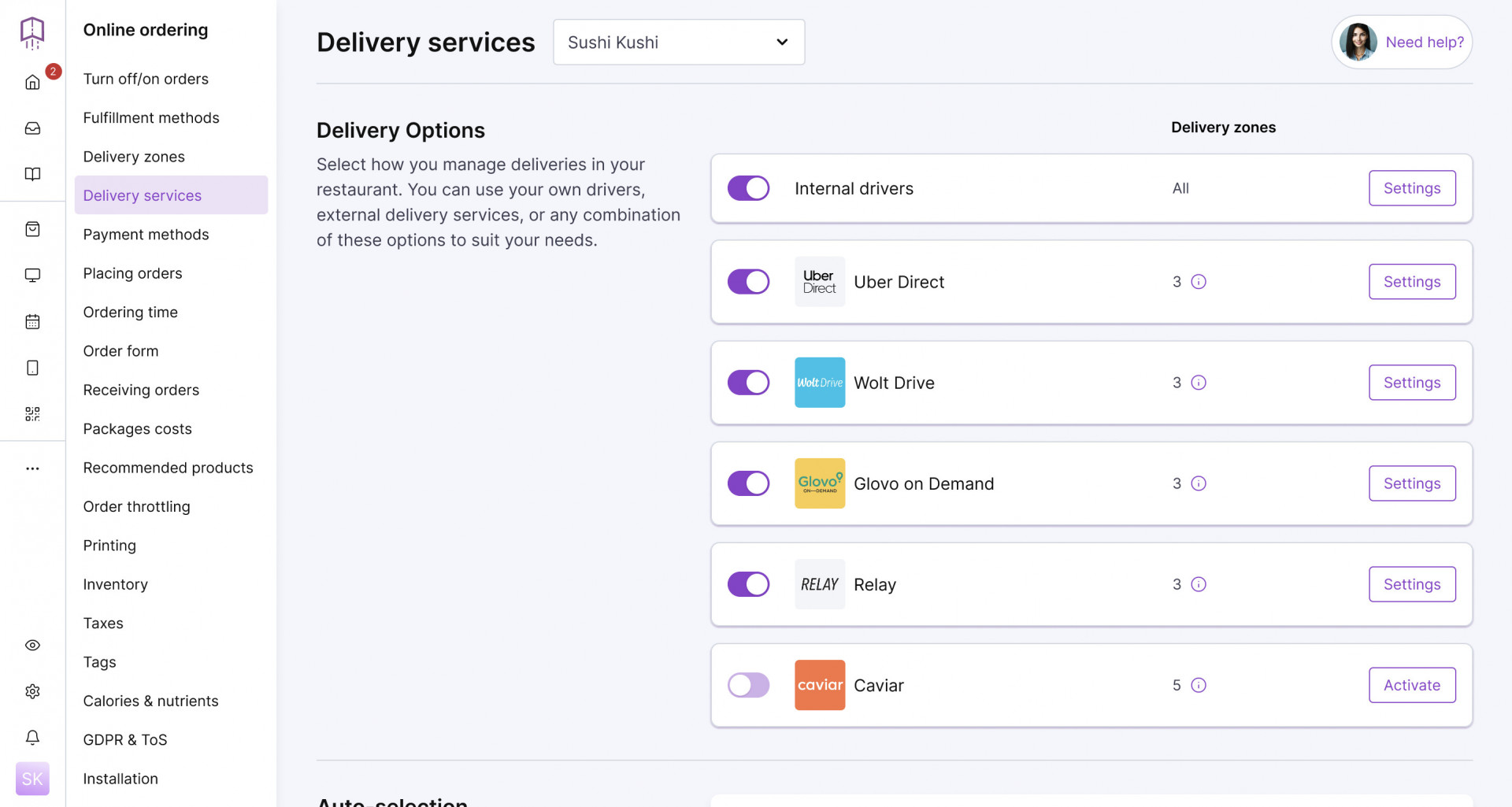
Integrate your system with online food delivery service partners like Uber Direct or DoorDash Drive. Useful if you want to dispatch delivery without managing your own drivers, or need help on high-volume days.
Payment Gateway Integration
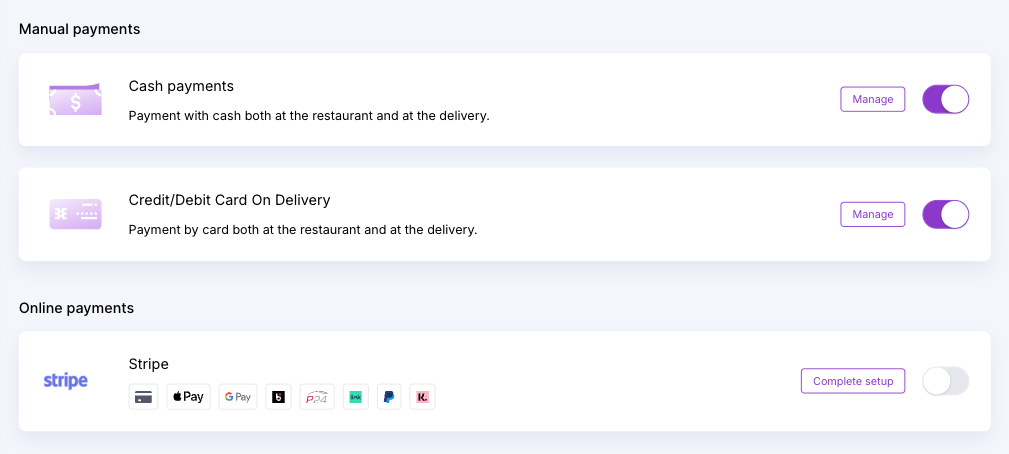
Let customers pay securely online with credit cards, mobile wallets, or other payment options. Make sure your online food ordering system supports smooth checkout with online payments.
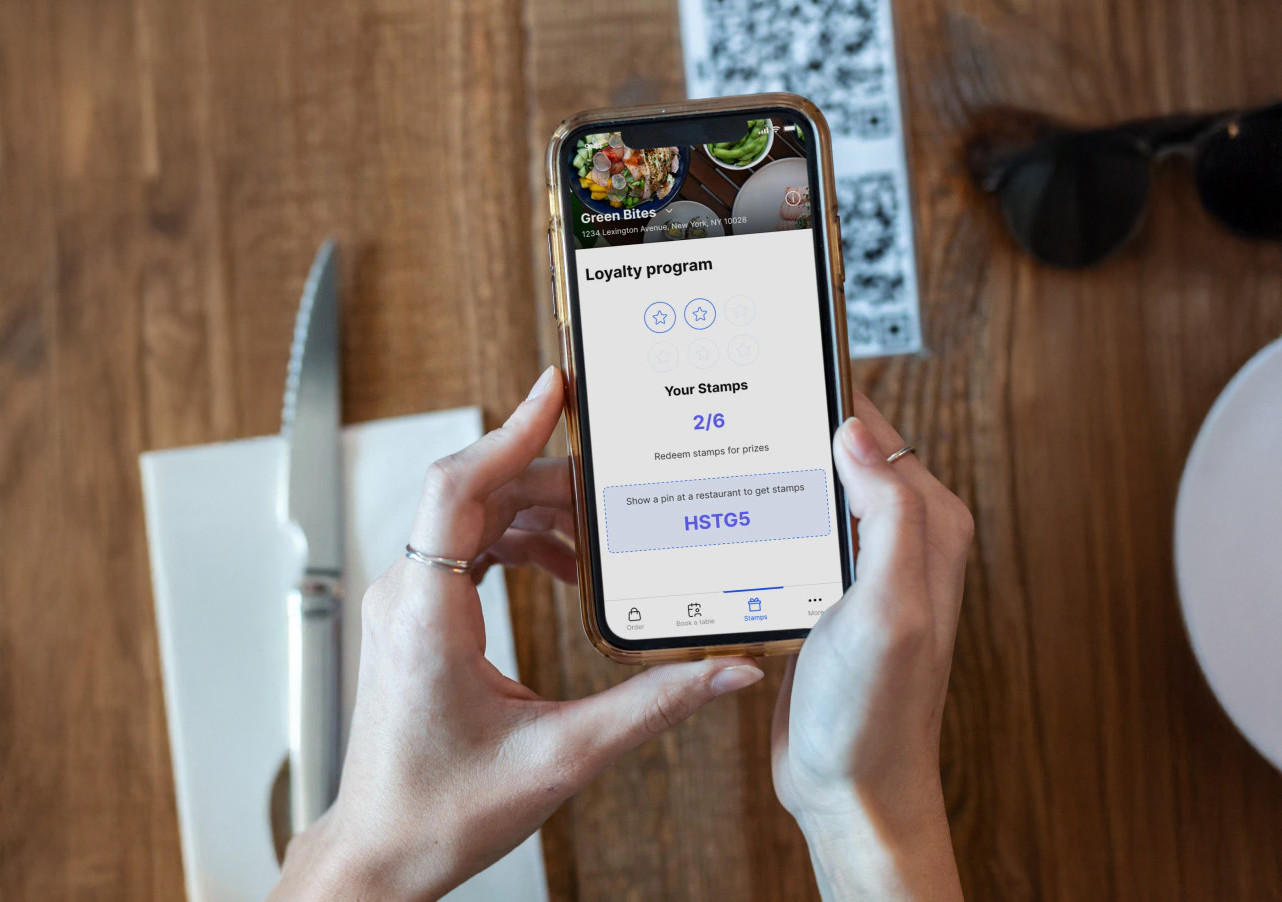
Loyalty Programs
Reward repeat customers with points, discounts, or exclusive offers. A restaurant loyalty system is key to increasing customer retention and online food orders.
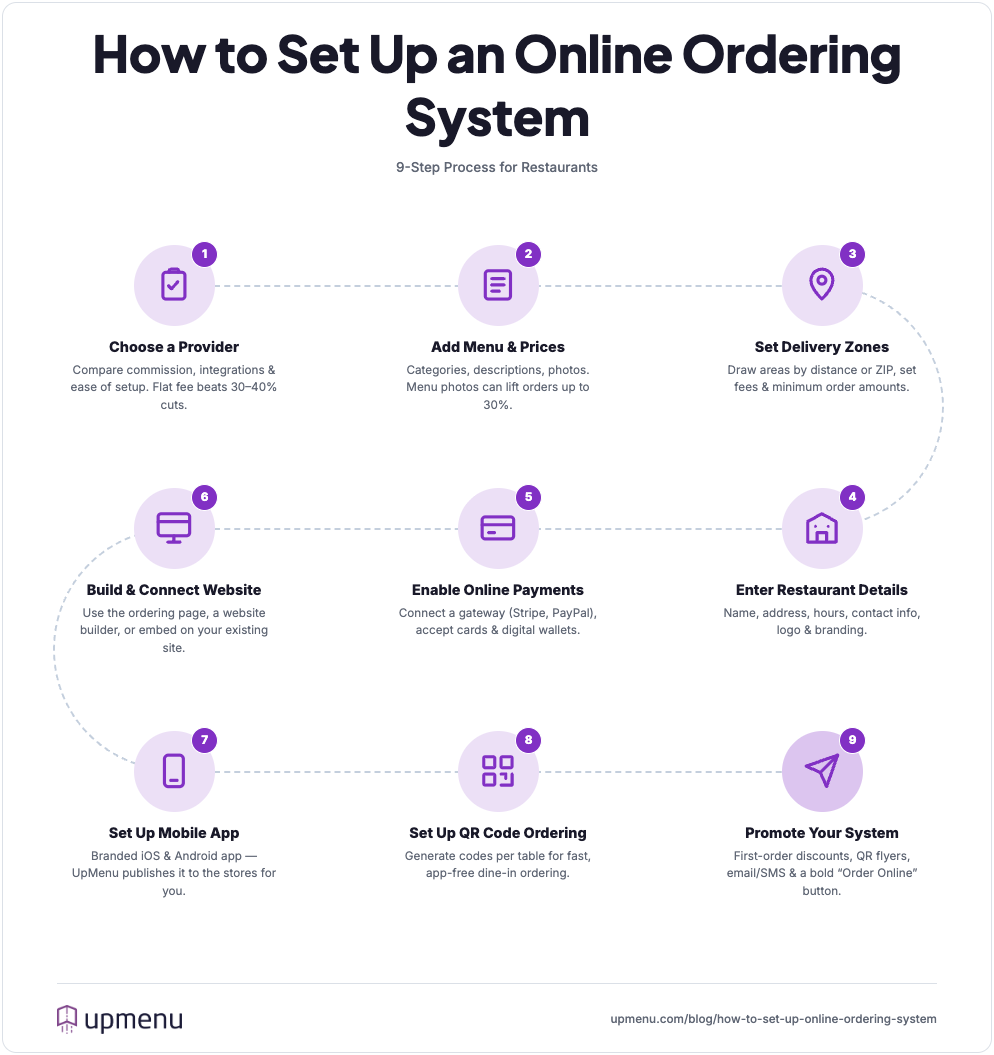
Step 1: Choose an Online Ordering System Provider
Choose a provider based on five things:
- Commission structure — a flat fee beats 30–40% per-order cuts.
- Website and restaurant POS integration.
- Support for delivery, pickup and QR ordering.
- Online payments and loyalty tools.
- Easy setup with no coding. A flat-subscription, all-in-one system keeps the most revenue in your pocket.
Why choose UpMenu? You get an all-in-one online ordering platform with tools that help you keep more revenue, grow your customer base, and simplify your day-to-day order management.
The next steps in this guide will walk you through exactly how to set up an online ordering system in UpMenu—from building your online menu to managing online food delivery, setting delivery zones, and optimizing your system.
Step 2: Add Menu Items and Prices
Once you’ve chosen your online ordering system, it’s time to build your online menu. This is one of the most important steps—your menu is what sells your food.
With UpMenu, adding and managing menu items is quick and intuitive. No tech experience required.
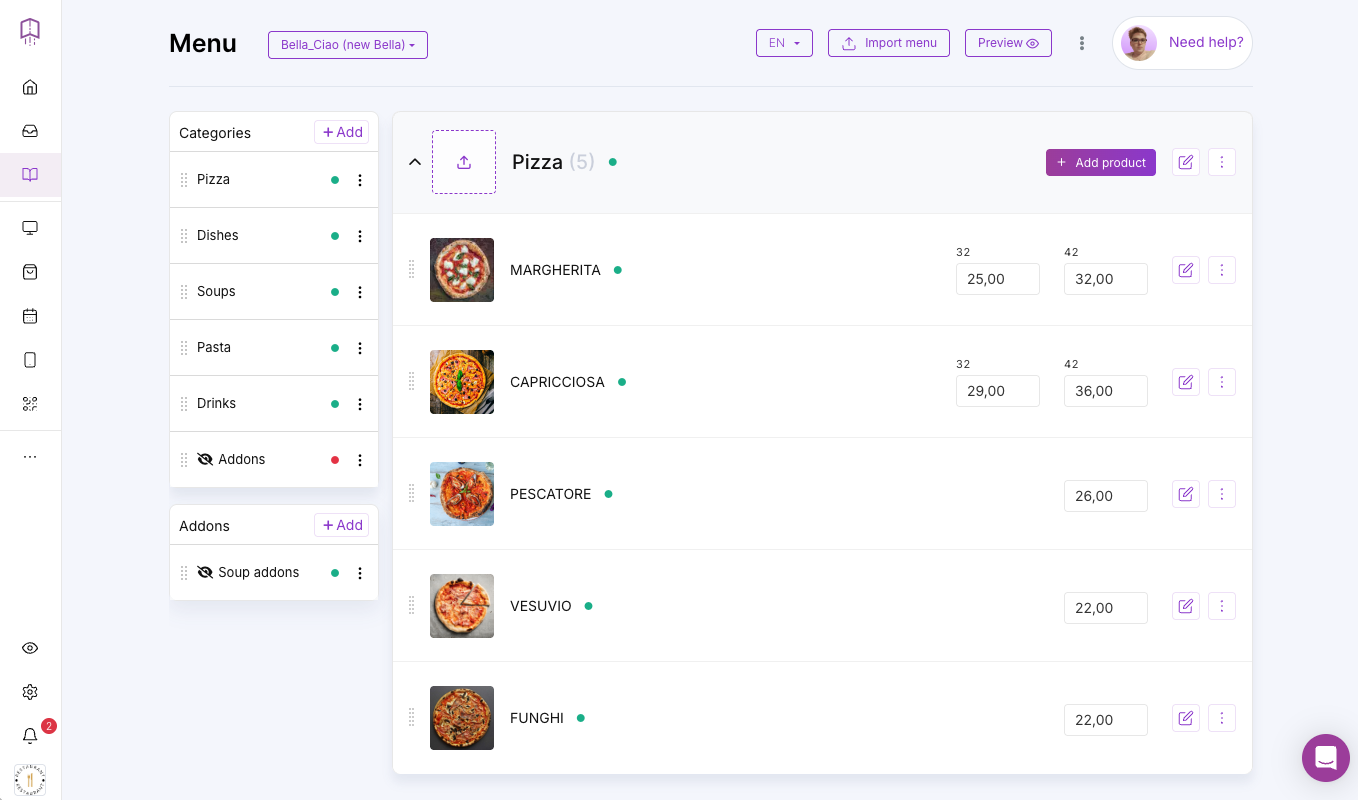
Here’s how to do it:
- Go to the “Menu” section in your dashboard.
- Add categories like Starters, Mains, Desserts, or Drinks.
- Create individual menu items with names, descriptions, and prices.
- Upload high-quality photos of your food items (they really help increase sales).
- Add customization options: extras, sizes, toppings, sides, etc.
- Set availability: choose which items appear during certain hours (e.g., breakfast or lunch menu).
- Preview your online menu before publishing.
Once your menu is live, it’ll appear on your restaurant website, your own online ordering system, and mobile app—making it easy for customers to browse and order online.
Step 3: Set Up Delivery Zones
To ensure smooth food delivery operations, you need to define where your restaurant will deliver.
Setting up delivery zones in your online ordering system allows you to control which areas you serve, how much to charge, and how to optimize your delivery routes.
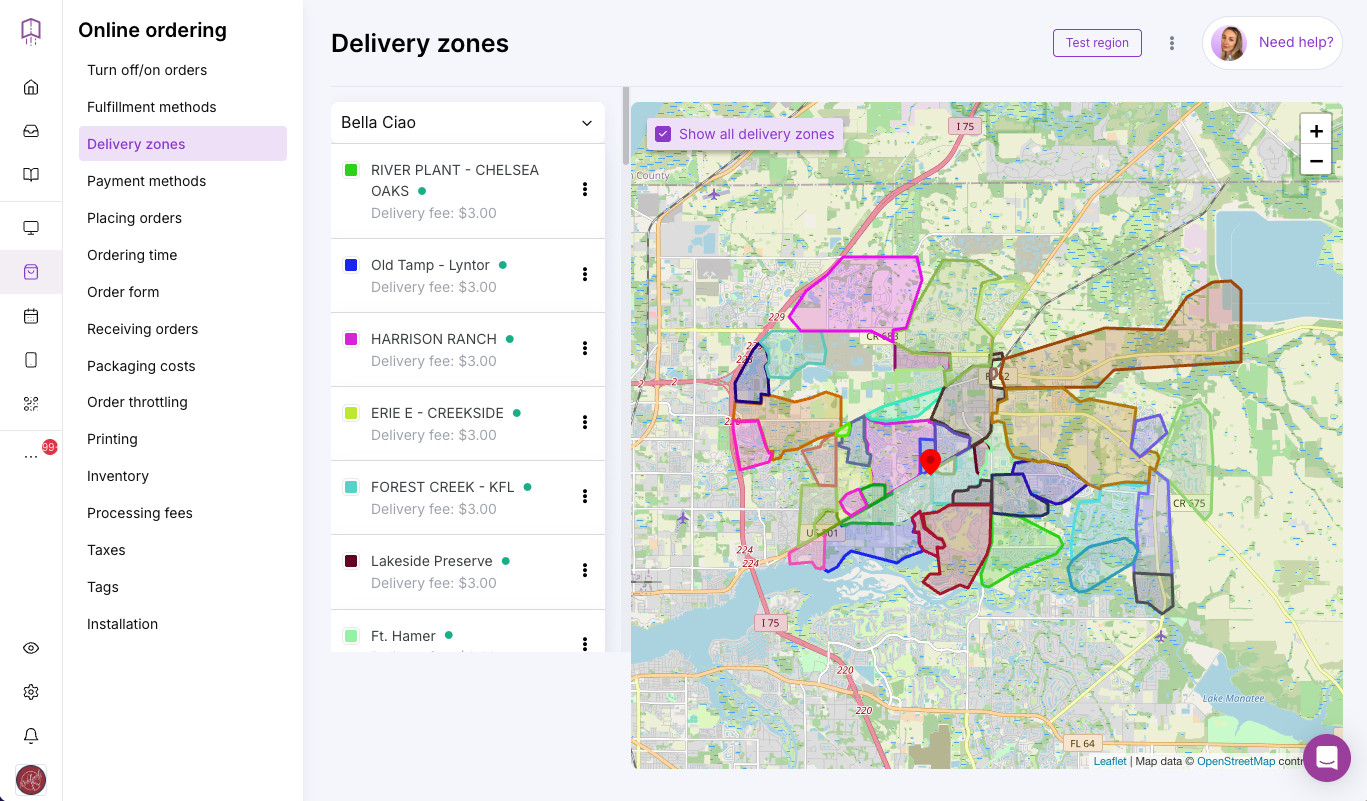
Here’s how to do it:
- Go to the Delivery settings in your admin panel.
- Use the map tool to draw custom delivery zones based on distance or ZIP/postal codes.
- Set minimum order amounts and delivery fees for each zone.
- Define estimated delivery times per zone to manage customer expectations.
- Choose whether orders from each zone are handled in-house or via third-party delivery services.
Step 4: Enter Your Restaurant Details
Now that your online ordering system is shaping up, it’s time to enter your restaurant details.
This ensures your customers have all the info they need to place online orders confidently—and it helps your restaurant website look professional and trustworthy.
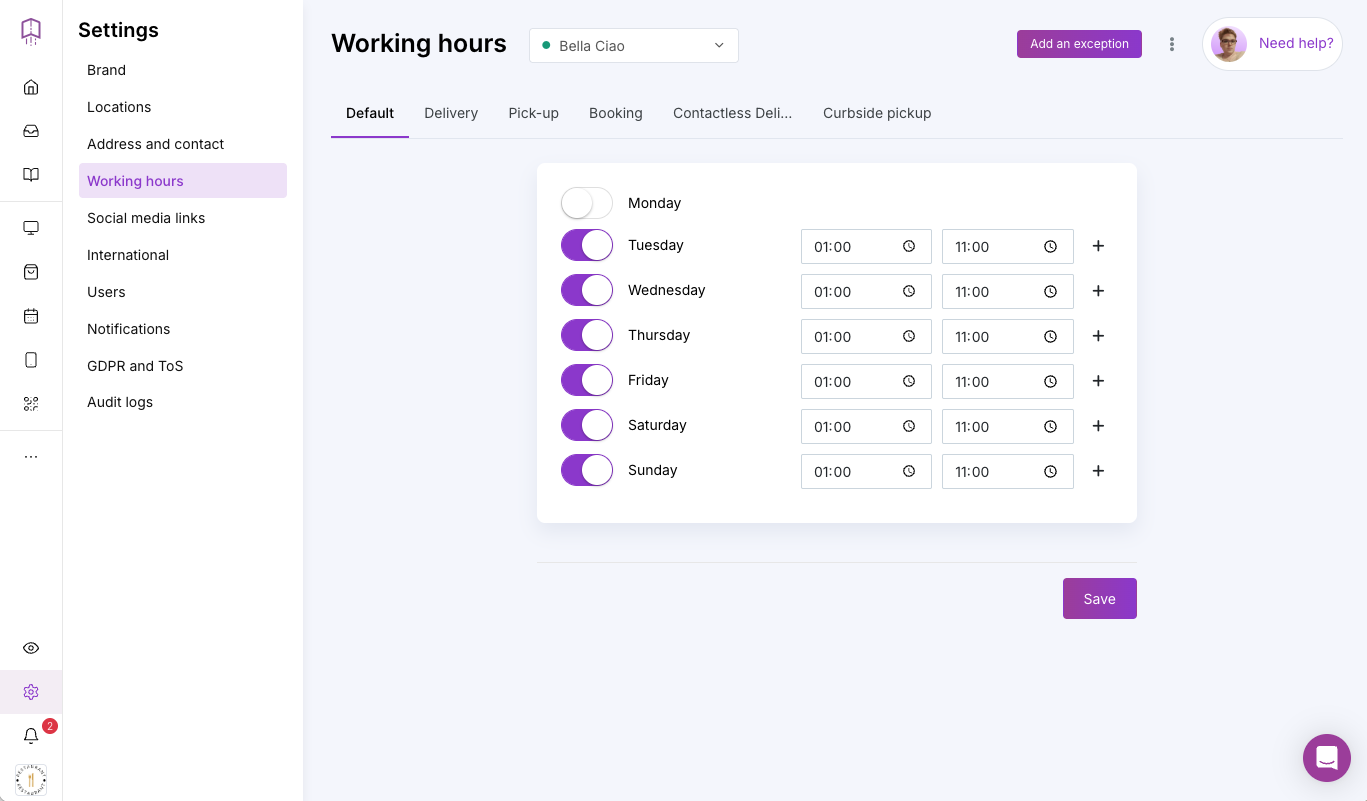
Here’s what to fill in:
- Restaurant name: This will appear in your own online ordering system and in your confirmation messages.
- Address: This is so customers know where to pick up orders (and so delivery zones work correctly).
- Working hours: Define when you accept online food orders, and separate hours for pickup vs. delivery if needed.
- Contact info: Add a phone number and email address in case customers need to reach out.
- Social media links: Drive more traffic to your pages and keep your brand consistent.
- Restaurant logo and branding: Upload your logo and colors to match your restaurant website or physical menu.
Once these basics are in place, you’re ready to customize the look and feel of your online ordering platform and move on to the next step.
Step 5: Enable Online Payments
To complete your restaurant online ordering system, you need to let customers pay directly through your online ordering platform.
Offering secure, convenient online payments makes the ordering process faster and more professional—helping increase completed online food orders.
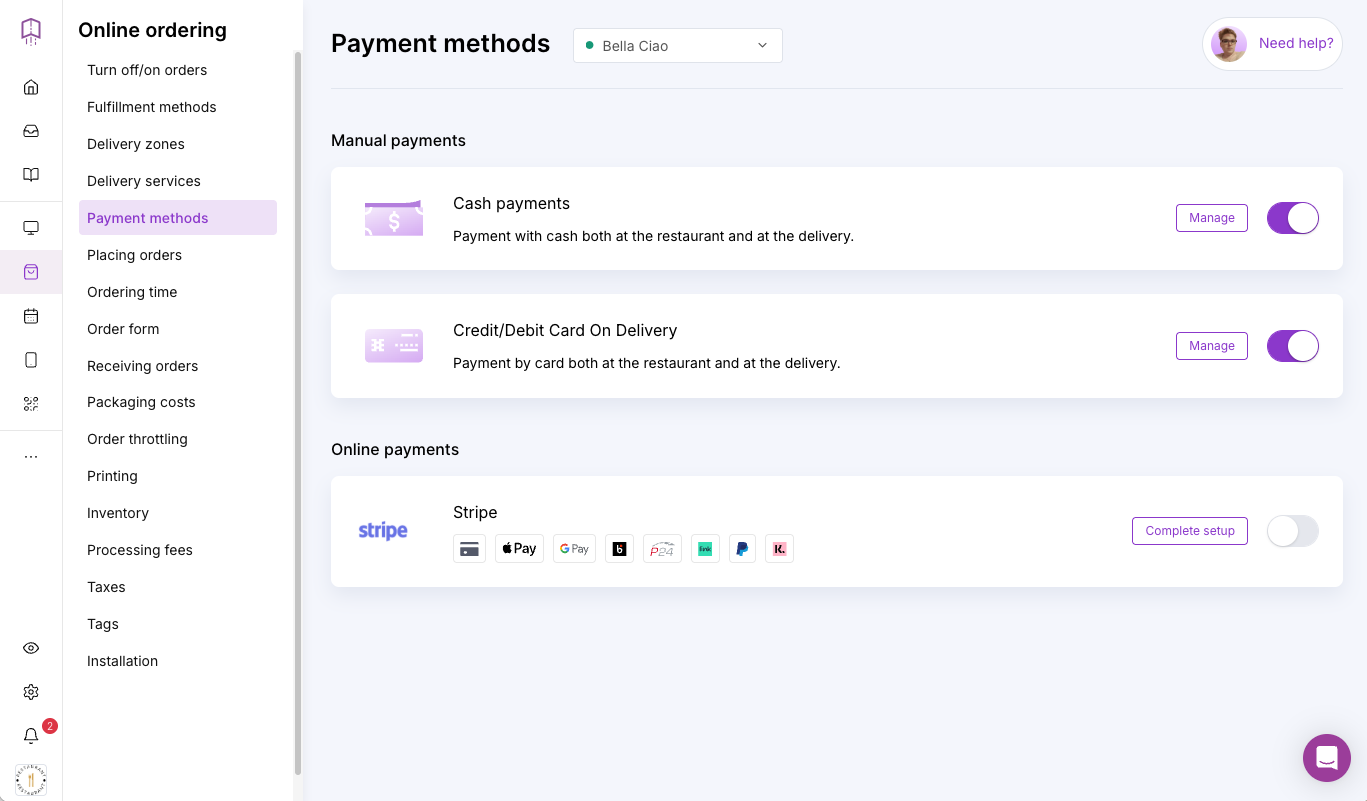
Here’s how to do it:
- Go to the Payment methods section in your admin panel.
- Choose your preferred payment gateway (e.g., Stripe, PayPal, or others supported in your region).
- Connect your account or set one up through the integration flow.
- Choose which payment methods you want to accept (credit/debit cards, Apple Pay, Google Pay, etc.).
- Enable payments for online orders—you can also accept cash on delivery if needed.
Secure online payments mean you can accept orders 24/7, reduce no-shows, and give customers the smooth, modern ordering experience they expect from top food delivery brands—without giving away a share of your earnings to third-party apps.
Step 6: Build & Connect Your Website
If you don’t already have a restaurant website, now’s the perfect time to set one up.
While not required to start accepting online orders, having your own website makes your brand look more professional, helps bring in more customers, and gives you full control over your restaurant business online.
With UpMenu you have three ways to get your menu online — pick the one that matches how much control you want.
Option 1: Use your ordering page as your website
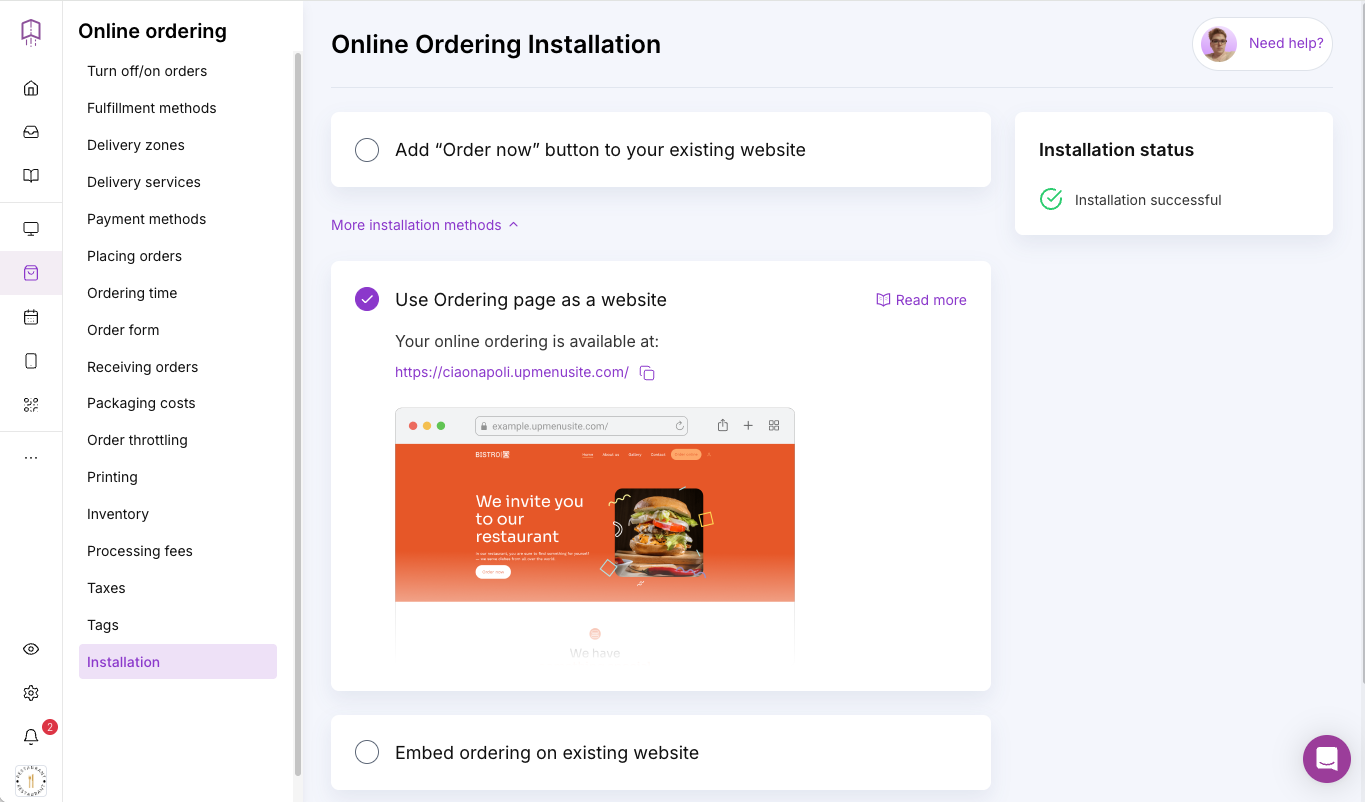
UpMenu’s online ordering system includes a fully functional ordering page that doubles as a basic website.
It displays your online menu, business info, and opening hours, and supports online payments — perfect if you want to launch quickly without any extra work.
Option 2: Build a full restaurant website with our builder
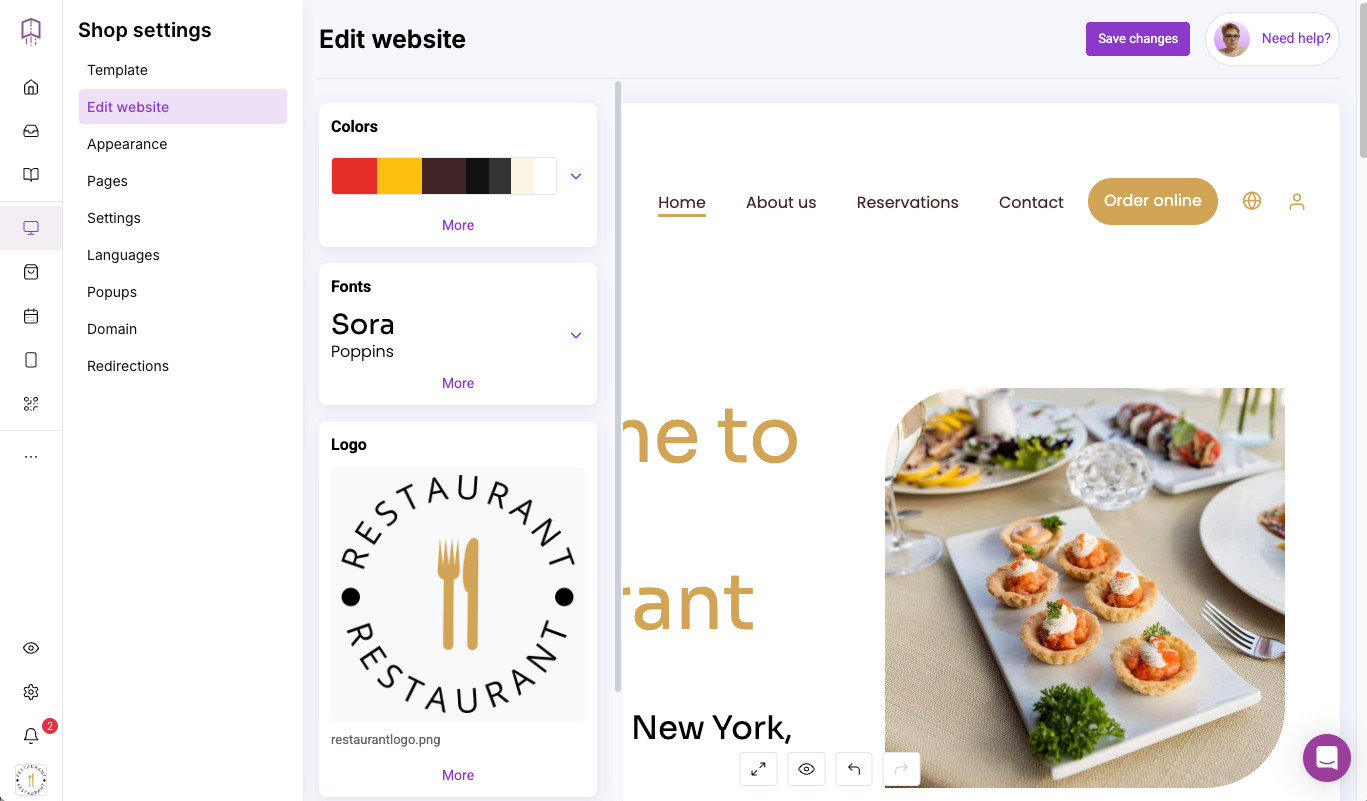
Want more control and customization? UpMenu includes a drag-and-drop restaurant website builder that lets you:
- Choose from pre-designed restaurant website templates.
- Add pages like About, Contact, or Blog.
- Match your branding with logos, images, and colors.
- Integrate your own online ordering system seamlessly.
- Highlight your best food items and promotions.
However you set it up, everything runs through your own website under your brand — so customers order in a few clicks, with no phone calls and no third-party apps.
Step 7: Set Up Your Mobile Application
Setting up a branded mobile app is the next step if you want to give your customers the most convenient way to order online. A dedicated app helps you stand out from third-party apps like Uber Eats and builds direct loyalty with your customer base.
With UpMenu, creating your mobile app is easy—even if you have zero tech skills.
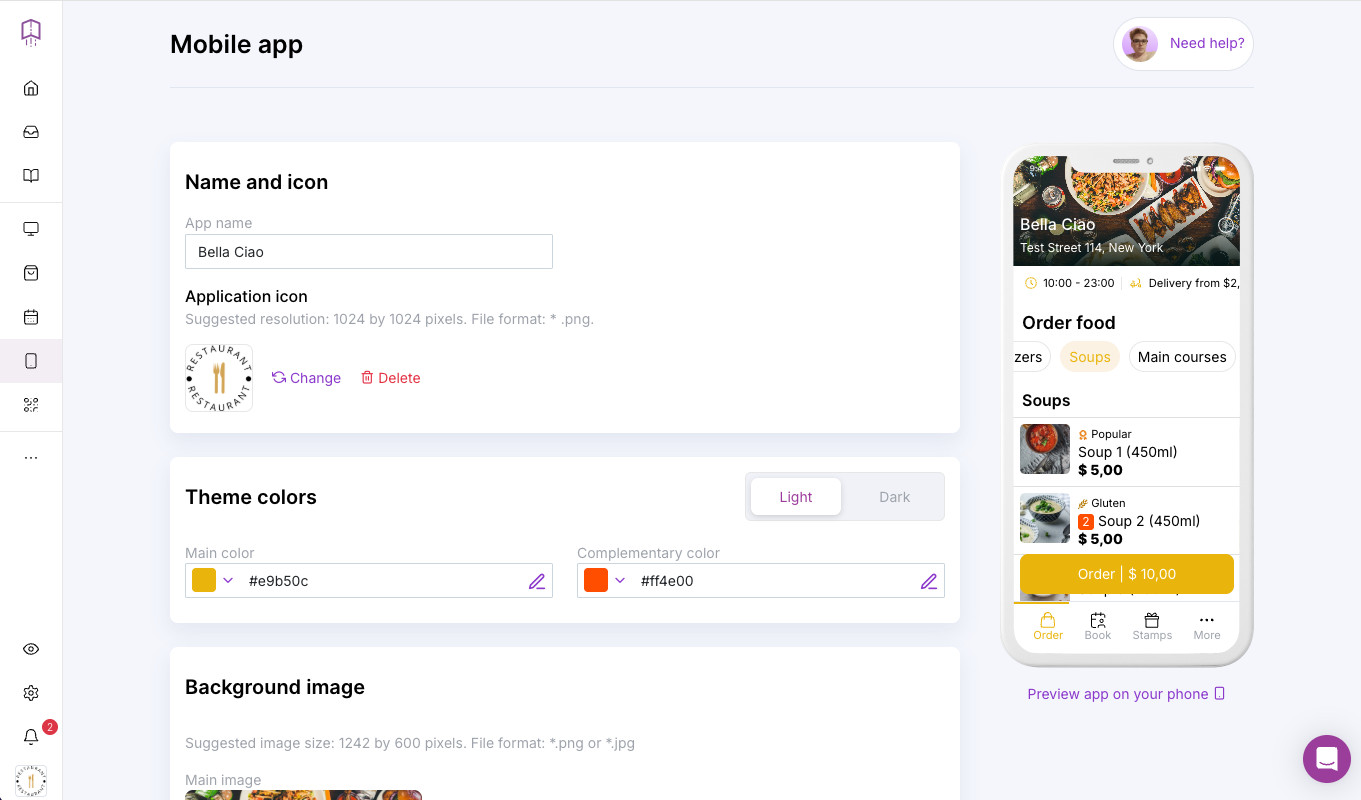
Here’s how to do it:
- Go to the Mobile App section in your UpMenu panel.
- Choose your app name, upload your restaurant logo, and select brand colors.
- Submit for publishing on Google Play and the Apple App Store (UpMenu handles the entire process).
- Promote the app on your restaurant website, social media, and in-store.
Step 8: Set Up QR Code Ordering
QR code menu is one of the fastest-growing trends in the industry—and for good reason. It speeds up the ordering process, reduces pressure on staff, and gives customers full control over how and when they order online.
With UpMenu, it’s easy to implement QR code online ordering for dine-in service—no app downloads or complicated setup.
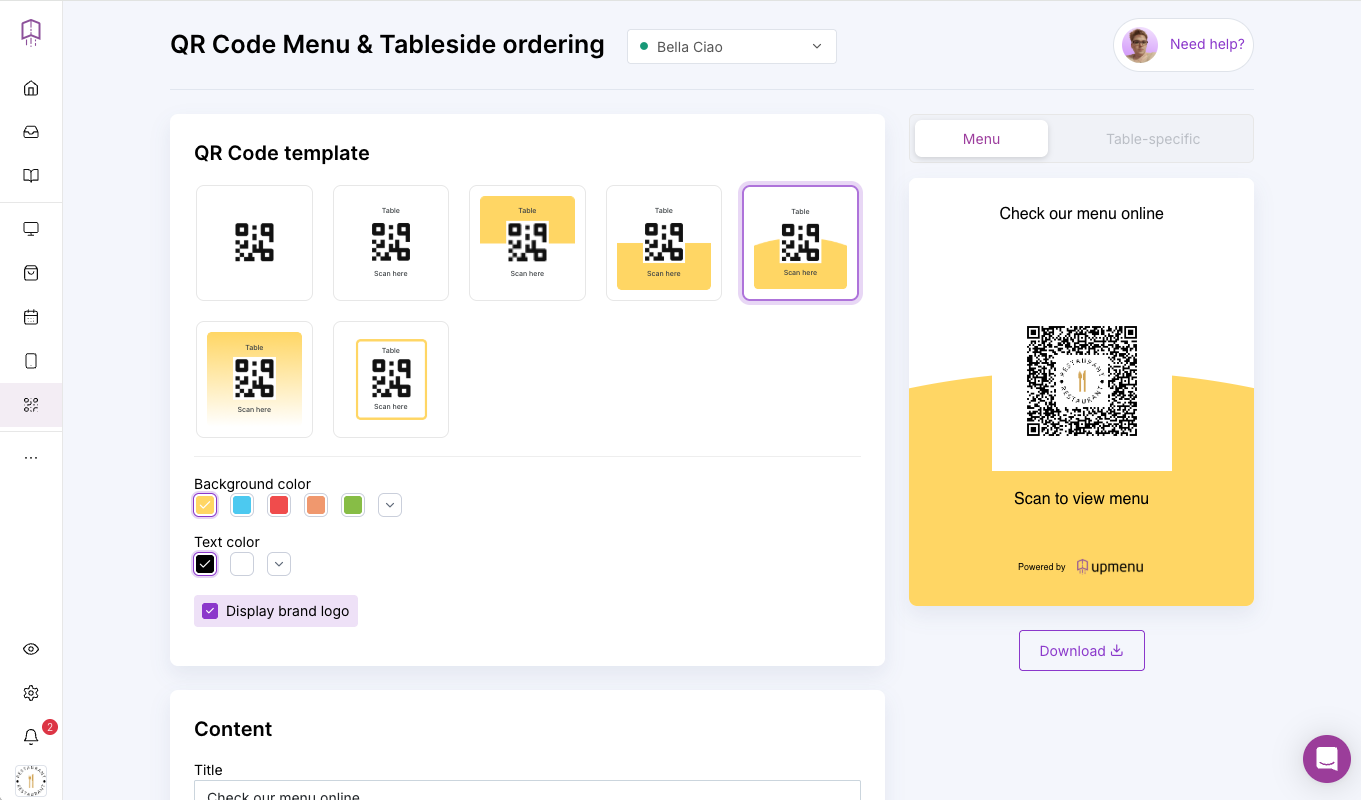
Here’s how to do it:
- Go to the QR Code Menu & Tableside ordering section in your UpMenu dashboard.
- Generate a unique QR code for each table or zone.
- QR Code automatically directs to your online menu and ordering page.
- Download and print the codes, then place them on tables, menus, or signage.
- Customers scan the code with their phone and place online orders instantly.